Two screens can reduce the need to switch between documents, but a small desk may make that convenience expensive in space. The second display can push the main screen to one side, shrink the mouse area or bring both screens closer than you intended. Begin with the work that benefits from a second view, not with a symmetrical photograph.
This workshop compares a primary-screen arrangement with equal-use displays. It uses freestanding equipment within its intended configuration. The outcome may be two displays, one display plus a closed laptop used as permitted by its maker, or a single screen with better window organization.
Identify which display deserves the central position
List the tasks performed during a typical session and note which screen you would look at most. A document you edit continuously differs from a reference window checked occasionally. Describe the tasks rather than dividing attention into arbitrary percentages that you have not observed.
If one display is clearly primary, center it on your seated position. Place the secondary display nearby where it can be consulted without a sustained twisted posture. If both displays are used equally, test a configuration that balances them, then assess whether your ordinary work actually supports that arrangement.
Watch for the misleading case where a laptop becomes the main input device but an external monitor becomes the main display. Your hands may point one way while your head points another. A separate keyboard and pointer can permit a more coherent arrangement, provided the desk has room. Adding devices without giving them a working zone may simply create a second conflict.
Measure the bases and connectors separately
Record each screen's width and each stand's footprint. Measure the distance from the back of the base to the screen surface, and inspect cable connectors that need space behind it. Displays with similar diagonal sizes can occupy different amounts of desk because their bases and proportions differ.
Use the actual intended stands and follow their load and assembly instructions. Do not balance a display on narrow storage boxes to free a few centimeters. If a manufacturer-approved freestanding support is under consideration, include its entire base and any restrictions on positioning, loading and movement.
OSHA — Computer Workstations: Monitors places display setup in relation to the other workstation components. Use that as a reason to measure the complete arrangement rather than treating monitors as independent rectangles. A base that sits neatly behind the keyboard may still block the place where a notebook needs to open. Check the task surface after positioning each support, including access to physical controls.
Protect the hands before filling the remaining width
Sit and establish the keyboard and pointer positions first. Move the mouse through the range needed for your normal work, including dragging between screens. A second screen may increase the pointer travel you use, although software settings and tasks affect that. Judge the actual movement rather than assuming a tiny pad will suffice.
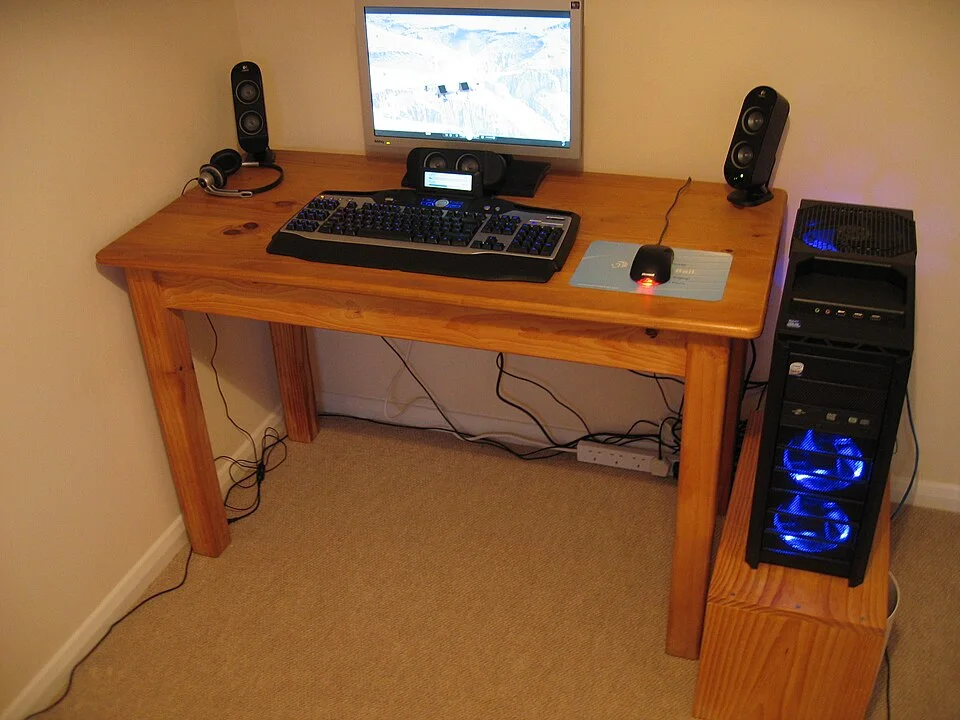
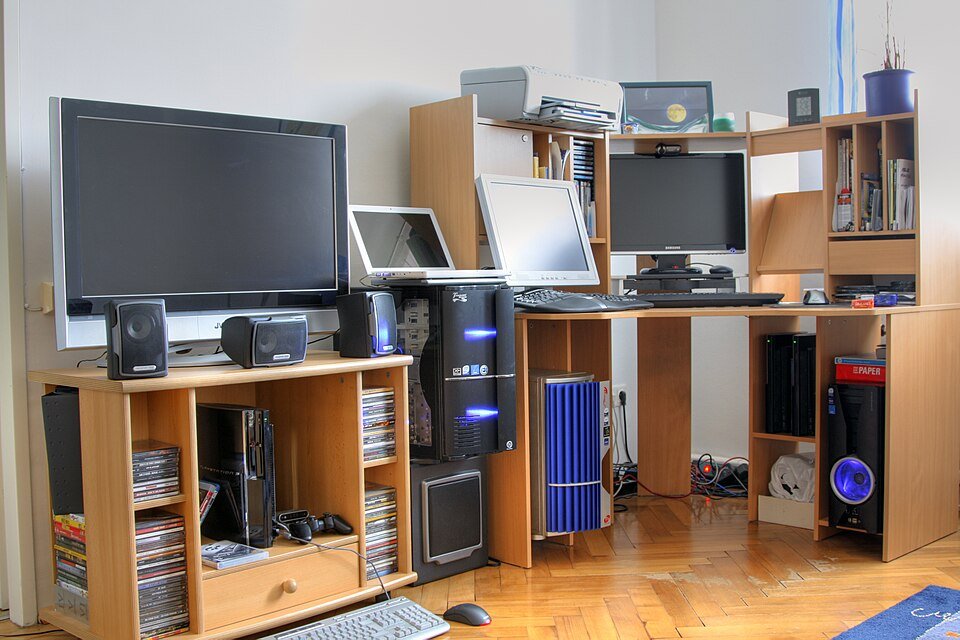
The keyboard and mouse occupy separate areas in front of the single monitor, with speakers claiming additional width. Preserve those active input areas in your own two-screen mock-up before allocating any remainder to papers or accessories. This photograph identifies equipment footprints; it does not demonstrate a two-screen fit or establish ergonomic dimensions.
Photo & usage
William Hook from Stafford, United Kingdom · CC BY-SA 2.0 · Source. Display copies resized and encoded as WebP; no instructional details were fabricated or removed.
Leave space to use both hands without contacting sharp edges or reaching around a stand. A decorative tray can move elsewhere; the input devices cannot be relegated to the margins simply because the screen arrangement looks balanced. If a laptop keyboard remains in use, include the open laptop's whole base in the active zone.
OSHA — Computer Workstations: Desks notes how crowded surfaces can displace equipment. When your elbow is repeatedly pushed outward by clutter, remove objects before changing the chair to compensate. A chair adjustment that makes your feet unsupported is not a solution to a desk-width problem. Reassess the number of devices if the working surface remains crowded after nonessential objects are removed.
Compare an illustrative width budget
Here is an illustrative example using invented dimensions. A desk is 110 cm wide. Two display bodies are each 53 cm wide, giving 106 cm of combined straight-line width. That leaves 4 cm overall before considering stand positions, any gap between screens or edge clearance. The number does not establish that the displays can be supported safely.
A different pairing uses a 53 cm display and a laptop occupying 32 cm in width. Their combined width is 85 cm, leaving 25 cm. However, the laptop's keyboard and open-screen depth may now compete with the separate keyboard and notebook. Less display width does not necessarily mean a better working arrangement.
Angling screens changes their projected width and depth together. Do not subtract a guessed amount for the angle and call the problem solved. Position stable equipment on the available surface, measure its actual projection and check every support point. If the required stance leaves a foot at the edge or hides controls behind another display, reject that layout.
Check viewing distance and posture during real work
Open the documents that prompted the second-screen idea. Read text, compare a line and type a response. Notice whether you lean toward the secondary display, rotate your torso or move the chair continually to find the correct screen. An occasional glance differs from doing sustained detailed work to one side.
The OSHA — Computer Workstations: Good Working Positions reference describes supported sitting and a forward-facing head as useful starting points. Keep your observations specific: which task produces which movement, and whether changing screen priority resolves it. Avoid promising that a particular layout will prevent discomfort or suit every user.
Check reflections at the hours you normally work. Moving a display sideways can place it in a glare path that the previous single-screen layout avoided. Use existing blinds or change orientation where feasible. If you cannot read the display without leaning despite suitable text size and reasonable positioning, a second screen may not belong in this desk location.
Decide what to change when the comparison fails
If two screens fit but paper does not, ask whether paper and both screens must be active together. An occasional reference sheet might use a separate freestanding holder, while a paper-heavy task may justify moving to a larger surface. Keep the distinction between occasional accommodation and a daily workaround.
If the secondary screen is consulted rarely, a single larger view or application window arrangement may be enough. If both views are essential and the desk cannot support them while maintaining hand space, choose a different desk or work location. A small room does not make equipment overhang or improvised supports acceptable.
Avoid buying a wider desk before mapping its chair position and surrounding doors. The wider furniture might block a wardrobe that previously opened beside the workstation. Compare the whole room with the equipment in use. Record the rejected option and its exact failure so that a different attractive product does not restart the same unsuccessful experiment.
Keep the setup only after the handoff test
Finish a representative work session and put away anything that normally leaves the desk. Check that no screen has been shifted into an unstable position to accommodate a temporary notebook. Verify the stands remain fully supported, cables are unstrained and the mouse still has its original working zone.
If the desk is shared, have the other user restore their arrangement through intended adjustments. Mark personal preferences in a small written note rather than assuming one person's screen heights and angles suit everyone. Frequent readjustment is acceptable when it is straightforward and does not require lifting heavy displays awkwardly.
Complete the decision with a recorded reason for the second screen: the particular comparison or monitoring task it supports. The arrangement passes when that benefit survives ordinary work, shutdown and room circulation. If it requires compromised screen position or constant rearrangement, keep the smaller equipment set and preserve the usable workspace.
THE REFERENCE FILE
Sources & scope
Documentation reviewed 1 Nov 2026. Examples are illustrative; this article does not claim hands-on product testing. Follow the instructions for your actual material, model and location.